


macOS has quietly changed how you interact with your computer. The interface looks the same, but the experience feels different.
Your Mac now anticipates what you need, manages its own performance, and connects your workflows automatically. This intelligence runs quietly in the background, adapting to your habits without getting in your way.
This article breaks down how AI changes your daily Mac experience and what it means for your productivity.
Table of Contents
- A Smoother Daily Workflow
- Finding What You Need Faster
- Automating Routine Tasks
- When the Experience Breaks Down
- System AI vs. Human Communication
- Our Final Thoughts
A Smoother Daily Workflow
The most obvious change to the Mac experience is what you no longer have to manage. In the past, running too many apps meant your system slowed down, forcing you to manually close programs to free up memory.
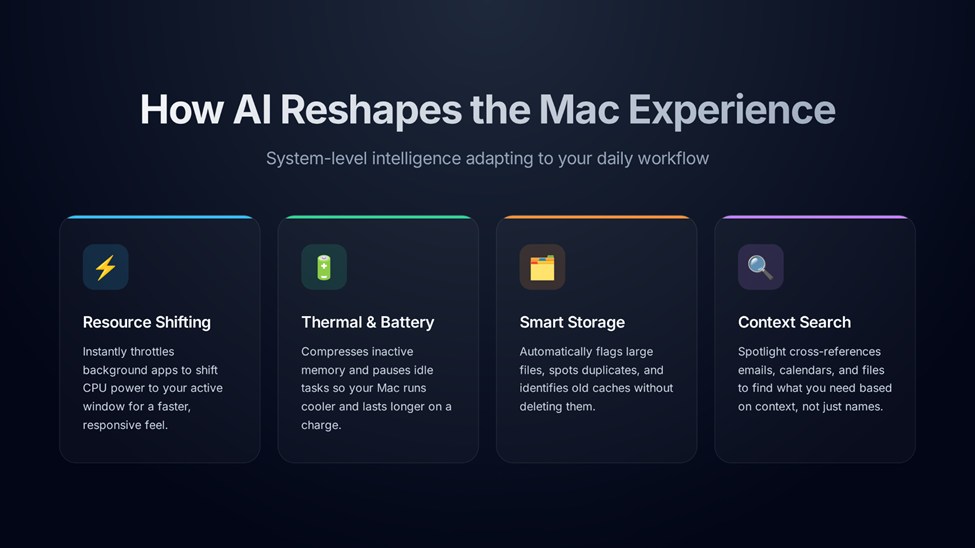
macOS now handles this for you through several adaptive behaviors:
- Active resource shifting: The system watches how you work and shifts power to the app you are actively using. If you switch from editing a video to reading an email, macOS instantly throttles the video editor in the background. Your active window always feels fast and responsive.
- Better battery and thermal management: Because the system compresses inactive memory and pauses background tasks, your Mac runs cooler and lasts longer on a single charge. You spend less time worrying about system resources and more time working.
- Automated storage discovery: You no longer need to hunt for large files when your drive fills up. The system automatically flags large files, spots duplicates, and identifies old caches. You still make the final choice to delete them, but the OS does the tedious discovery work for you.
- Clearer background visibility: If your Mac feels slow, Activity Monitor shows exactly which background processes are responsible. A user running multiple cloud drives might notice heavy overlap. With that clear data, the user experience improves when they choose to uninstall OneDrive and rely solely on native iCloud sync. The system gives you the clarity to make your setup more efficient.
Finding What You Need Faster
Search is where the Mac experience has changed a lot. Spotlight used to be a simple file finder. Now, it acts as a context-aware assistant.
When you search for something, you no longer need to remember the exact filename. Spotlight understands the context of your work. It looks at the content inside your documents, when you created them, and how often you open them.
The experience of finding information is now connected across your apps. For example, if you search for “Q2 budget presentation,” Spotlight might show:
- The email where your colleague sent it
- The calendar invite for the budget meeting
- The Messages thread where you discussed it
- Your notes from the meeting
This changes how you navigate your Mac. Instead of clicking through folders to find related items, you use Spotlight as a central hub that pulls your entire workflow together in one keystroke.
The experience still has limits. Spotlight cannot answer complex questions about your documents or summarize them for you. It finds the pieces, but you still have to put them together.
Automating Routine Tasks
The Mac experience is moving away from manual repetition. Through Shortcuts and App Intents, macOS learns your routines and offers to automate them.
If you perform the same sequence of actions every morning, the system notices it. It surfaces these actions in Spotlight or suggests them as Shortcuts.
This changes how you interact with third-party apps. You no longer have to open an app to use its core features. A task management app can expose an “add task” action directly to the system. You trigger it from Spotlight without ever launching the full application.
This API-level intelligence makes the Mac feel like a cohesive environment rather than a collection of isolated apps. Your tools talk to each other, and the system acts as the bridge.
When the Experience Breaks Down
An intelligent user experience relies on assumptions. The system assumes it knows what you want based on your past behavior. When those assumptions are wrong, the experience breaks down.
Power users hit these edge cases often:
- A critical developer tool you only use occasionally gets throttled because the system thinks it is inactive
- A massive video archive gets flagged for deletion even though it is an active project
- Automated workflows trigger at the wrong time because your routine has changed
This is why macOS keeps manual overrides accessible. The true strength of the Mac user experience is that it does not force automation on you. When the system guesses wrong, you can open Activity Monitor, adjust your Login Items, or modify your Shortcuts to take control back.
System AI vs. Human Communication
Apple Intelligence brings system-wide writing tools directly to the Mac. You can now rewrite emails, summarize notes, and draft documents inside any app.
This speeds up the writing process, but it creates a new problem. System-level AI tends to write in a safe, predictable way. The output often sounds robotic and generic. It relies on the same repetitive structures and vocabulary.
While macOS automates the drafting process, communication still requires authenticity. You cannot send generic AI text to clients or publish it on a blog without losing credibility.
This is why AI humanizers have become essential. You can use your Mac’s built-in intelligence to generate ideas and structure your work quickly. Then, you use a humanizer to strip away the AI patterns, restore a natural tone, and ensure the text reads as if a real person wrote it.
Our Final Thoughts
AI has fundamentally changed the Mac user experience by removing friction. You spend less time managing resources, searching for lost files, and repeating routine tasks. The system adapts to your habits, making your daily workflow faster and more intuitive. But this intelligence works best when you guide it. Understanding how your Mac learns allows you to shape a more efficient, personalized workspace.
Leave a Reply