


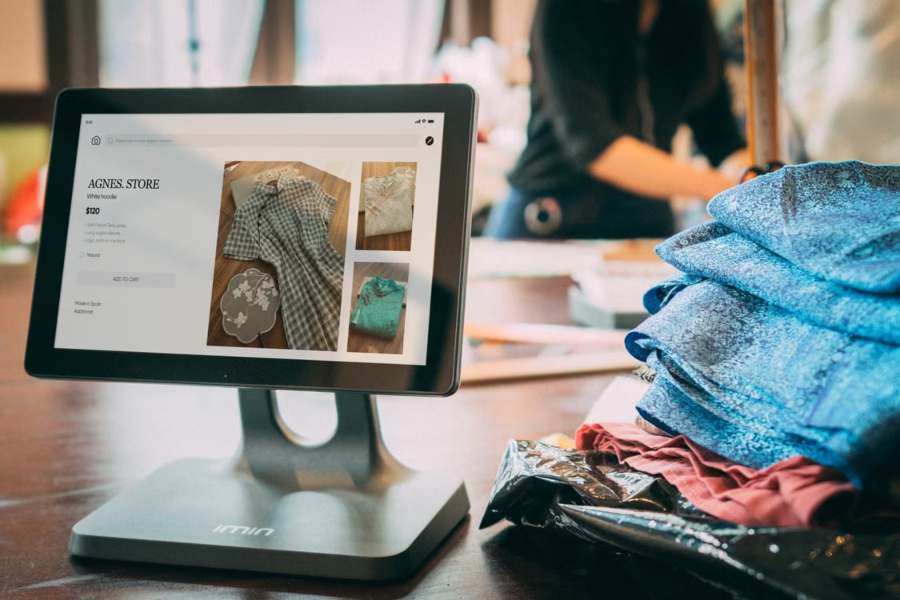
Most store redesigns start with the homepage. Teams spend weeks on hero banners, button colors, and the font on product cards. Meanwhile, the menu, the filter bar, and the search box get copied from the theme demo and left alone. It’s an odd set of priorities. Those three pieces decide whether a shopper finds anything at all.
Navigation works a lot like the aisle signs in a supermarket. Nobody walks into a grocery store to admire the signs. But when they’re missing or wrong, people wander, get annoyed, and leave with half their list. Online, leaving takes one tap. Groups like the Baymard Institute and Nielsen Norman Group have spent years showing how often shoppers give up on a site because they can’t find a product that’s right there in stock.
Part of the problem is ownership. Visual design has a clear owner (the designer), and product pages tend to belong to merchandising. Menus, filters, and search sit between teams, so they drift. On Shopify projects, navigation work usually falls under the UX and testing stages described at https://digitalsuits.co/shopify/shopify-web-design/, yet in-house teams often leave it unassigned.
Developers see these elements as settings; marketers see them as SEO space. Hardly anyone treats them as design. A menu is a model of how buyers think about a catalog, and models need testing. Filters and search belong in the same bucket, even when a theme makes them look like simple toggles.
Why Do Shoppers Get Lost in Perfectly Good Stores?
A store can have great products, fair prices, and fast pages, and still leave people confused. The causes are rarely dramatic. They’re small habits that pile up until the catalog feels like a maze.
Menus built around the org chart
Plenty of stores build their menus the way the company is run inside. One menu item per supplier, one per warehouse group, one per buying team. It makes sense to the people who work there. To someone hunting for a rain jacket, it’s just noise.
Labels only insiders understand
Brand names for collections are another common trap. A section called “Horizon Series” might mean a lot to the product team. A first-time visitor has no clue if it’s shoes, tents, or face cream. Plain labels like “Hiking Boots” or “Moisturizers” feel dull in a meeting. They also get clicked.
Too many doors on the first screen
Then there’s the homepage that tries to link to everything. Twelve tiles, three sliders, and a mega menu with fifty links. Each one looks harmless on its own. Together they create choice overload, and shoppers often react by picking nothing at all.
Navigation That Works Like a Good Store Map
Good navigation starts with how customers group products in their heads, not with how the catalog sits in the admin panel. The steps below keep that idea front and center without turning the project into a research marathon.
Start with card sorting instead of guesses
Card sorting is cheap, and it’s often eye-opening. People get a stack of product names, sort them into groups that feel natural, and then name each group. Tools like Maze, UXtweak, and Lyssna (formerly UsabilityHub) run these sessions online, so a small team can get real input in a few days. The results often look nothing like the current menu. That’s the point.
A tree test comes next. Users get a task (“Find a waterproof jacket for a child”) and click through a text-only version of the menu. If most of them head down the wrong branch, the label or the structure needs work. It’s far cheaper to learn that in a spreadsheet than after launch.
Keep the top level short
Big retailers such as REI and The Home Depot carry huge catalogs, yet their top menus stay fairly short. The depth lives one or two levels down. A short top row tells shoppers where they are at a glance, a bit like the floor guide by the escalator in a department store.
Mega menus can work well for large stores, as long as they’re split into clear columns with headings. A wall of unlabeled links is a different story; it’s a sitemap someone forgot to hide.
Treat mobile navigation as its own project
On phones, the hamburger menu hides everything behind one icon, so that first tap carries a lot of weight. Plenty of mobile shoppers never open it and head straight for search. Sticky bottom bars, category chips under the header, and a big search field can take some of the load off. It’s smart to sketch the mobile version first, since squeezing a desktop menu onto a small screen rarely ends well.
Filters: The Quiet Workhorses of Category Pages
Once a shopper lands on a category page, filters do most of the heavy lifting. They turn four hundred dresses into twelve that fit the budget, size, and occasion. When filters are missing or badly chosen, that same shopper starts scrolling. Scrolling fatigue sets in fast.
Choose filters from real buying questions
The best filters answer the questions buyers already ask. Zappos has long let shoppers filter shoes by width, which matters a lot to people with wide feet. Sephora lets people filter by skin type and ingredient needs, because that’s how beauty buyers decide. “Brand” and “Price” are handy, but they’re rarely the filters that close a sale.
A quick way to find these questions is to read support tickets, chat logs, and reviews. If people keep asking whether a backpack fits a 16-inch laptop, “Laptop size” probably deserves a spot in the filter panel.
Fix the product data before the interface
Filtering has an unglamorous side. It’s only as good as the data underneath. If half the products lack a “Material” value, the material filter quietly hides half the catalog. On Shopify, filters set up in the free Search & Discovery app pull from variants, tags, and metafields, so clean metafields matter more than any visual tweak. Shopify’s standard product taxonomy helps too. It gives categories a shared vocabulary instead of a dozen spellings of “colour.”
Small details that add up
A few habits make filters feel easy rather than fiddly:
- Show product counts next to each value, so nobody clicks into an empty page.
- Display applied filters as chips above the grid, each with a quick way to remove it.
- Keep the scroll position and picks in place after a filter loads.
- On mobile, use a full-screen filter drawer with a clear “Show results” button.
None of these are new ideas. Together, though, they’re the gap between a filter panel people trust and one they ignore.
Search Works More Like a Chat Than a Box
People who use site search tend to know what they want. That makes them some of the most valuable visitors a store gets. It also makes them some of the least patient, and a bad results page tells them, fairly bluntly, that the store doesn’t get them.
Plan for typos, synonyms, and local slang
People don’t type the way catalogs are written. They misspell brand names, use plurals, and bring their own local words. A UK shopper searches for “trainers,” while an American types “sneakers.” Someone in Australia might look for “thongs” and expect sandals, which is a fun one for any store that sells abroad.
Shopify’s Search & Discovery app supports synonym groups. Third-party tools like Algolia, Klevu, Searchanise, and Boost AI Search & Discovery add typo tolerance, merchandising rules, and smarter matching. The tool matters less than the habit, though. Someone on the team should own the synonym list and update it every month or so.
Make the zero-results page useful
Every store hits a dead end now and then. What matters is what happens next. A blank page that says “No results found” is the online version of a shop clerk shrugging. A better page suggests close matches, links to popular categories, and keeps the search field ready for another try. Some stores also add a short contact line for items they might stock soon.
Read search logs like customer interviews
Search data is basically customers telling you, in their own words, what they came for. Google Analytics 4 can track site search through its enhanced measurement settings. Shopify’s own reports show top searches and searches with no clicks. Pair those with session recordings from Hotjar or Microsoft Clarity, and patterns show up fast.
If dozens of people search for “gift card” and find nothing, that’s a fix worth an afternoon. If many search for a product the store doesn’t carry, that’s a talk for the buying team. Either way, the logs are free research, and they’re already sitting in the admin.
How Can a Team Tell It’s Working?
Findability is easy to talk about and harder to measure. It helps to pick a few signals and watch them over time.
The search exit rate shows how often people leave right after seeing results. A falling rate usually means results are getting more useful. Filter use on key category pages shows whether shoppers find the filters helpful or skip them. Zero-result searches, checked weekly, give the team a running to-do list.
Simple task tests are worth running too. Give five people a real goal, like finding a certain product under a set price, and watch where they pause. It’s low-tech and sometimes humbling. Still, a twenty-minute session can reveal more than a month of dashboards, because it shows the why behind the numbers.
Summing It Up
Navigation, filters, and search rarely make it onto a mood board, yet they shape almost every visit to an online store. Menus should follow how customers think, not how the business is run. Filters should answer real buying questions and rest on clean product data. Search should forgive typos, know local slang, and handle dead ends with grace.
The good news is that most fixes here are practical and fairly cheap. Card sorting, tidy metafields, a kept-up synonym list, and a monthly look at search logs can change how a store feels without a full redesign. Treat findability as real design work, give it a clear owner, and shoppers will spend less time hunting and more time buying.
Leave a Reply